How to Track a Flight on iPhone Using iMessage
Your iPhone can track flights right in iMessage—no apps required. Just type a flight number, tap the link, and see real-time status, gates, and arrival times instantly.
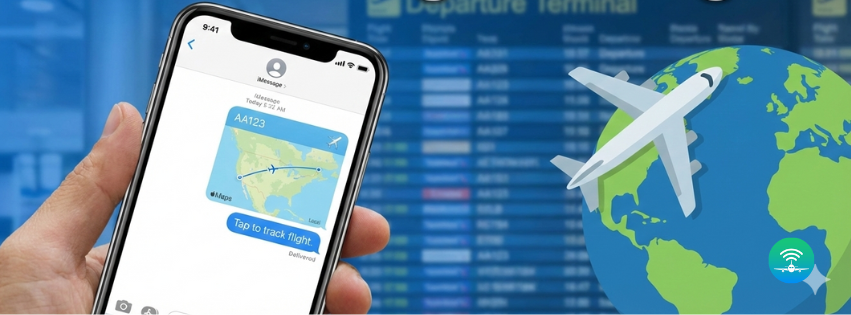
Ever needed to check if someone's flight landed on time? Your iPhone has a surprisingly simple trick built right into iMessage that lets you track flights without downloading any apps.
What You Need to Know First
iMessage can automatically detect flight numbers in your conversations and turn them into interactive links. When you tap these links, you'll see basic flight information like departure time, arrival time, gate numbers, and current status. It's perfect for quick checks when you are picking someone up from the airport or just want to see if a flight is running on schedule.
How It Works: Step-by-Step
Step 1: Open iMessage Launch the Messages app on your iPhone like you normally would for texting.
Step 2: Type or Receive a Flight Number Either type a flight number yourself (like "AA1234" or "Delta 567") or have someone send it to you in a message. The format doesn't need to be perfect—iMessage recognizes most common airline codes.
Step 3: Tap the Underlined Flight Number Once you send or receive the message, the flight number should appear underlined in blue, just like a web link. Tap on it.
Step 4: View Flight Details A preview card pops up showing the flight information, including the airline, departure and arrival airports, scheduled times, and current status. You can tap "Preview Flight" for a slightly larger view with more details.
What Information You will See
The iMessage flight preview shows you the essentials:
- Airline name and flight number
- Departure and arrival airports
- Scheduled departure and arrival times
- Current flight status (on time, delayed, landed, etc.)
- Gate information when available
- Terminal details
Tips for Better Results
Make sure you are typing the airline code followed by the flight number without spaces (UA2345 works better than UA 2345). If the flight number doesn't automatically link, check that you have an internet connection—iMessage needs to be online to fetch flight data.
For international flights, include the airline code even if it seems obvious. "Lufthansa 456" works better than just "456."
When You Might Need More
iMessage flight tracking is great for quick status checks, but it has limitations. You will not get push notifications about delays, gate changes, or cancellations. The information updates when you tap the link, not automatically in the background.
If you are meeting someone at the airport and need real-time updates, or if you are monitoring a flight with multiple connections, you might want something more robust. Dedicated flight-tracking app like FlyFi offer continuous monitoring, delay alerts, and more detailed tracking information that updates automatically. These apps are particularly helpful during busy travel days or when weather disruptions are likely.
Why This Feature Is So Handy
The beauty of iMessage flight tracking is its simplicity. There is nothing to set up, no account to create, and no extra app taking up space on your phone. It's already there, waiting to help the moment you need it.
Next time you are coordinating airport pickups or just keeping tabs on a loved one's journey, remember this little iPhone trick. It will not replace a full flight-tracking solution for serious travelers, but for casual, occasional checks, it's incredibly convenient and surprisingly reliable.